Reconcile Expense Transaction
Reconcile Income Transactions
Where to find your transactions
Navigate to Sales → Bank Reconciliation → Transactions.
Here you’ll see all transactions that were imported from your bank statement CSV file.
Each row includes the date, the bank account it was imported into, description, counterpart, amount, and status.
Income vs expense (how to tell them apart)
Income transactions are shown in green and displayed as a positive amount.
Expense transactions are shown in red and displayed as a negative amount (with a minus sign).
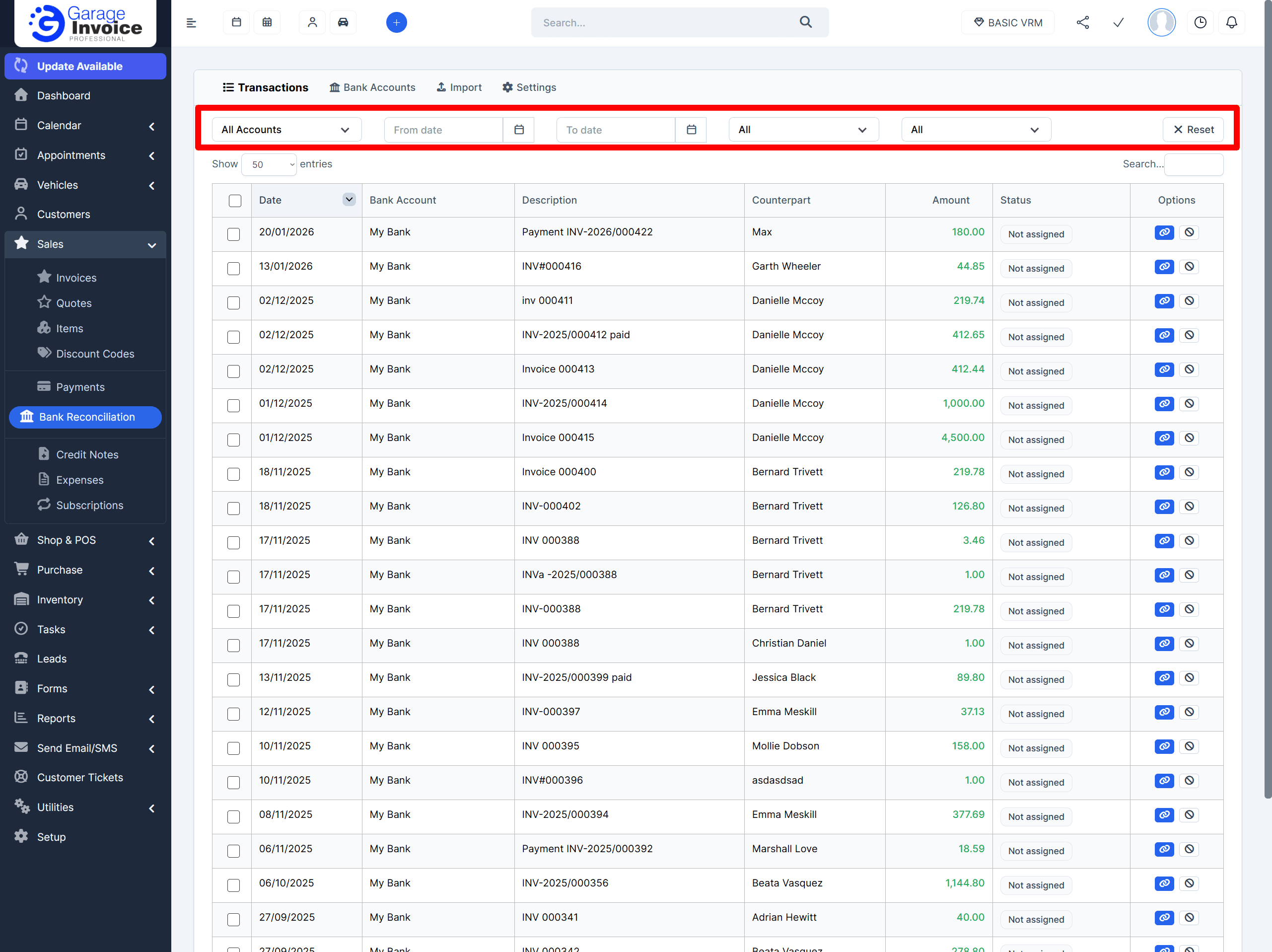
Use filters to find what you need
Above the transactions table you’ll find filters to help you narrow things down, for example:
by date range / period
by status
by type (Income or Expense)
Available actions
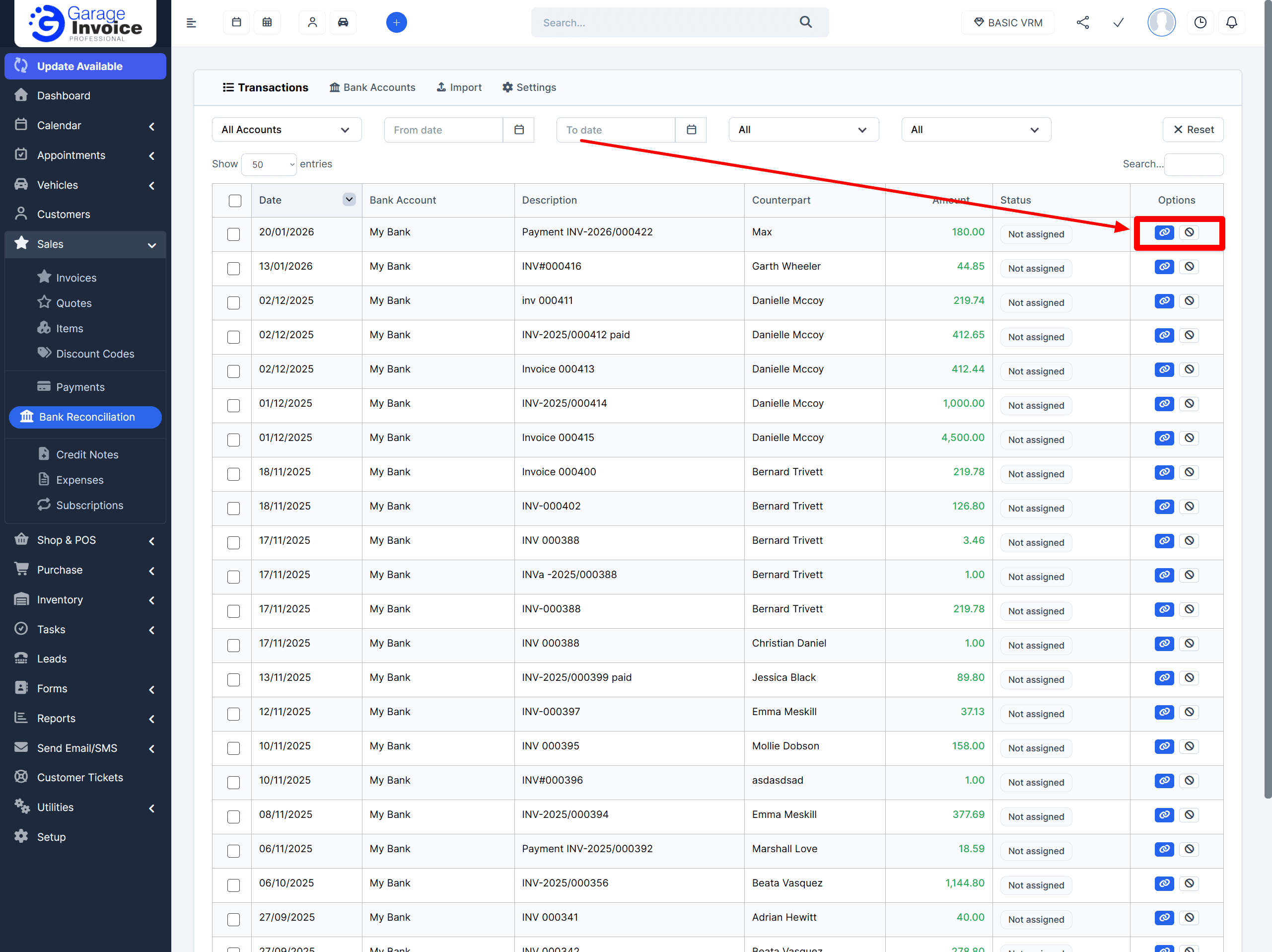
For each transaction you have two options:
Reconcile/Match
How to reconcile an expense transaction
Click the blue chain icon
This opens the matching screen where you can link the bank transaction to an expense in the system.

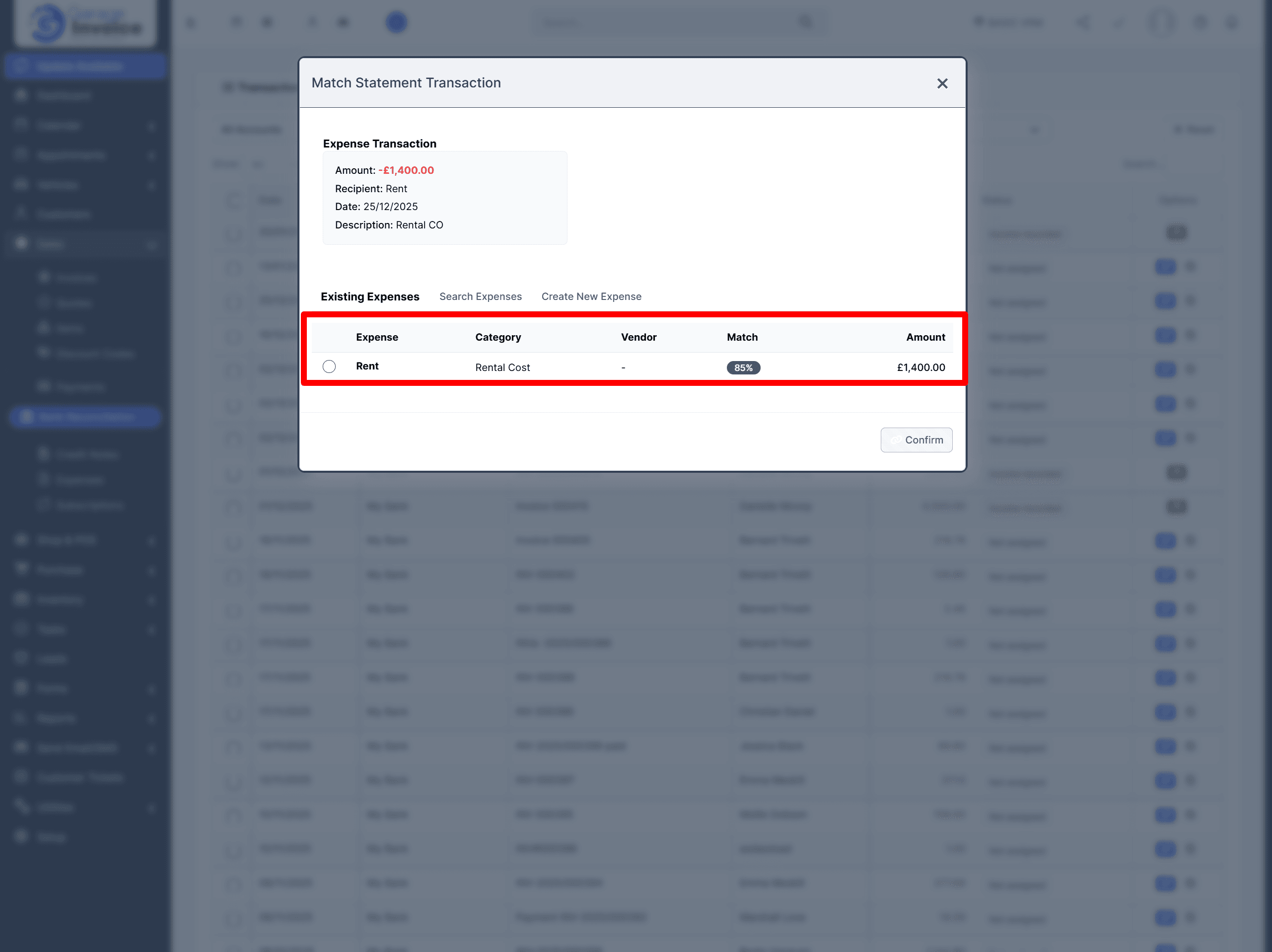
- Review suggested matches
The system will show expenses suggestions based on the transaction amount, date, description, and recipient.
Each suggestion includes a match percentage (%) to help you choose the most likely expense.
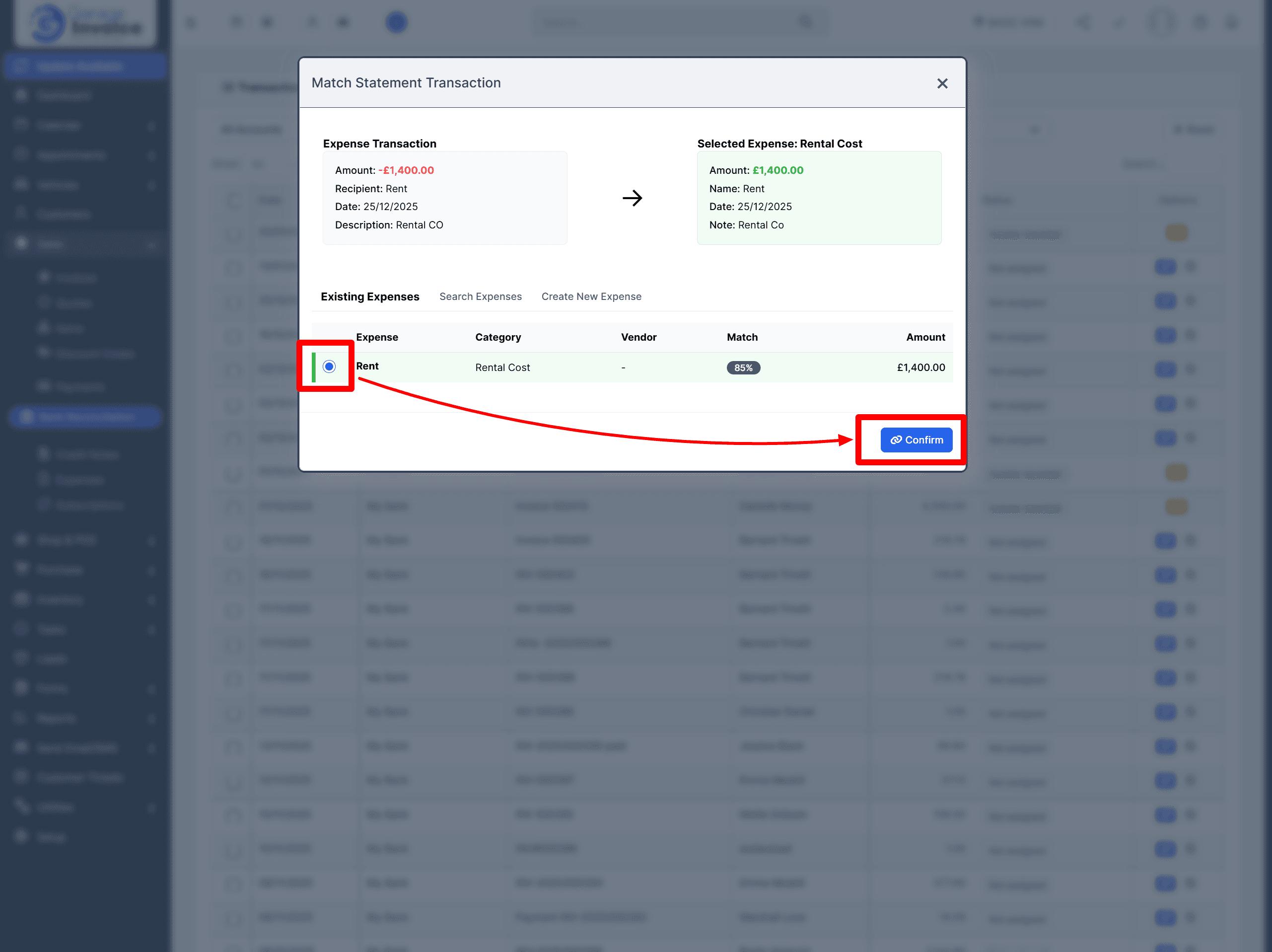
- Select the correct expense and confirm
Click the expense you want to match, then click Confirm.
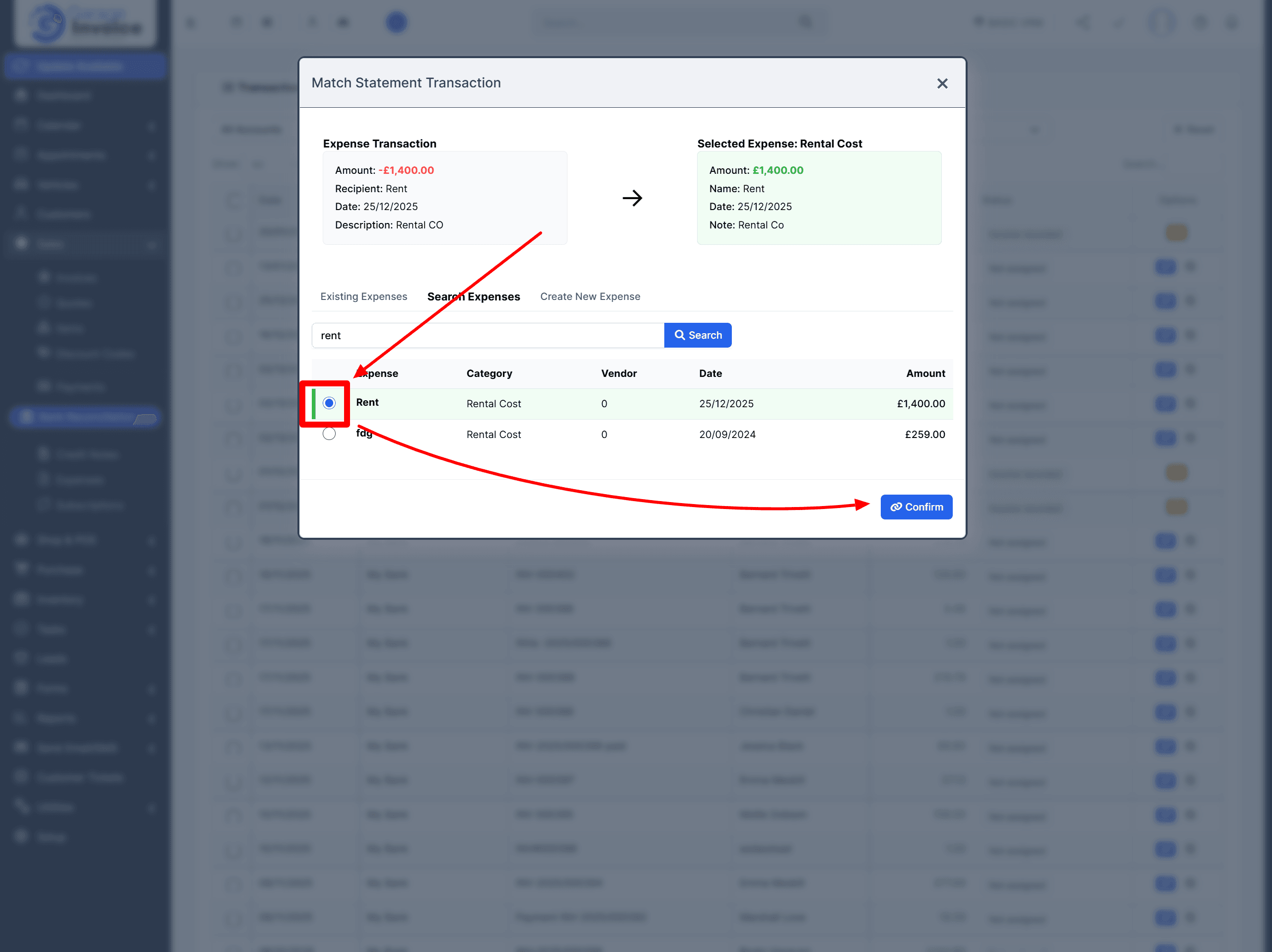
If the expense is not in the suggestions
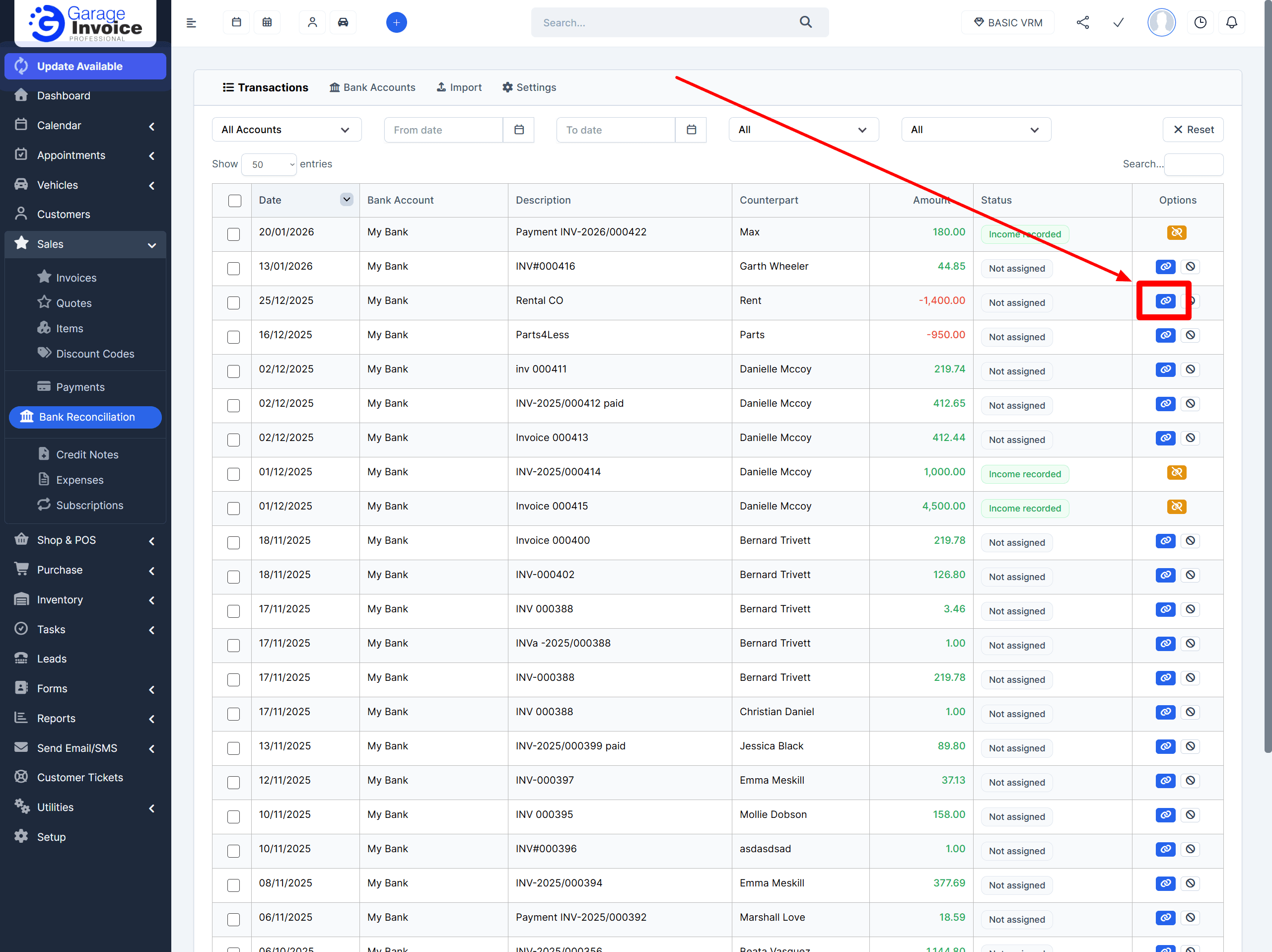
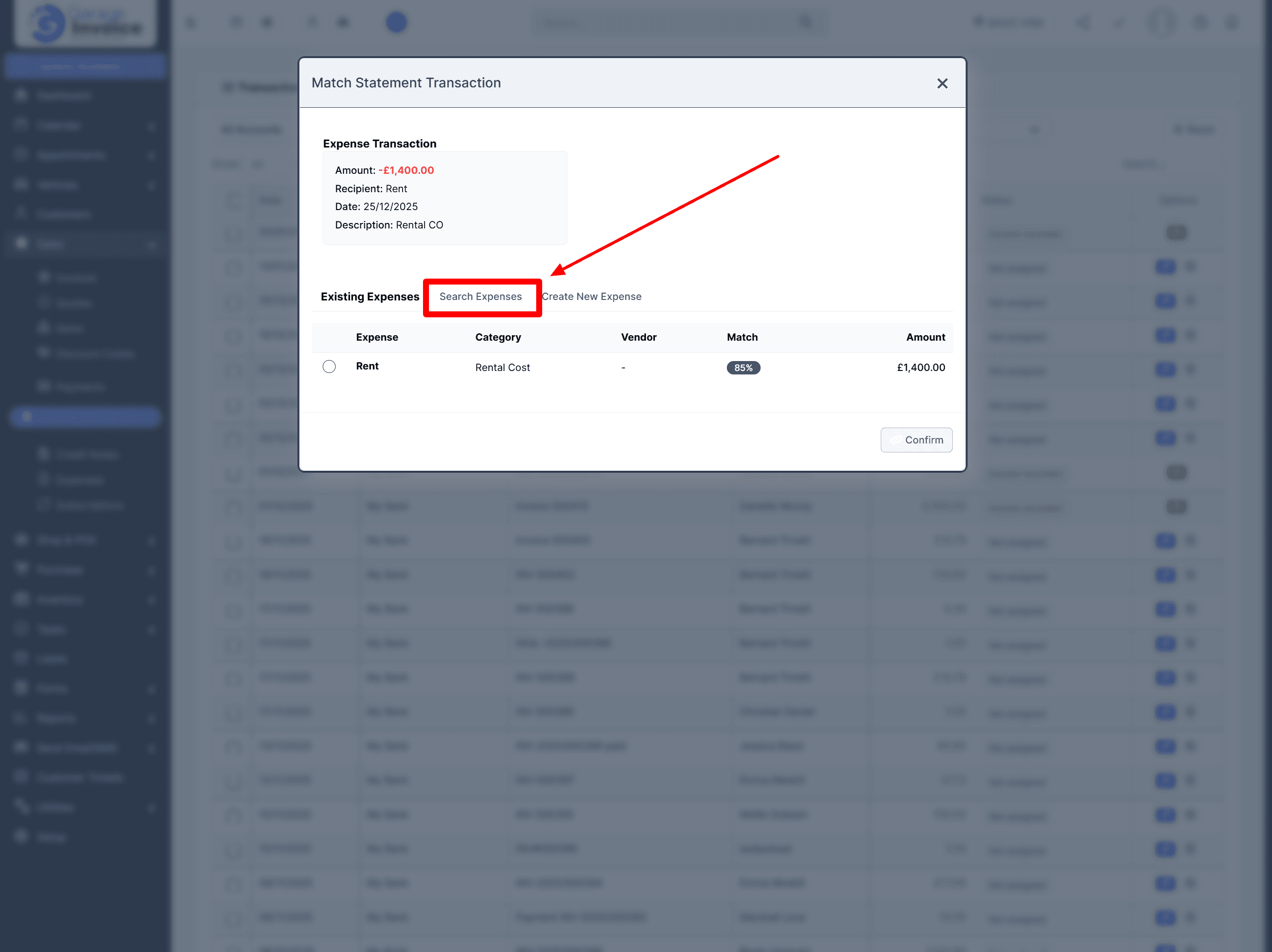
If you can’t see the right expense in the suggested list:
Click Search Expenses
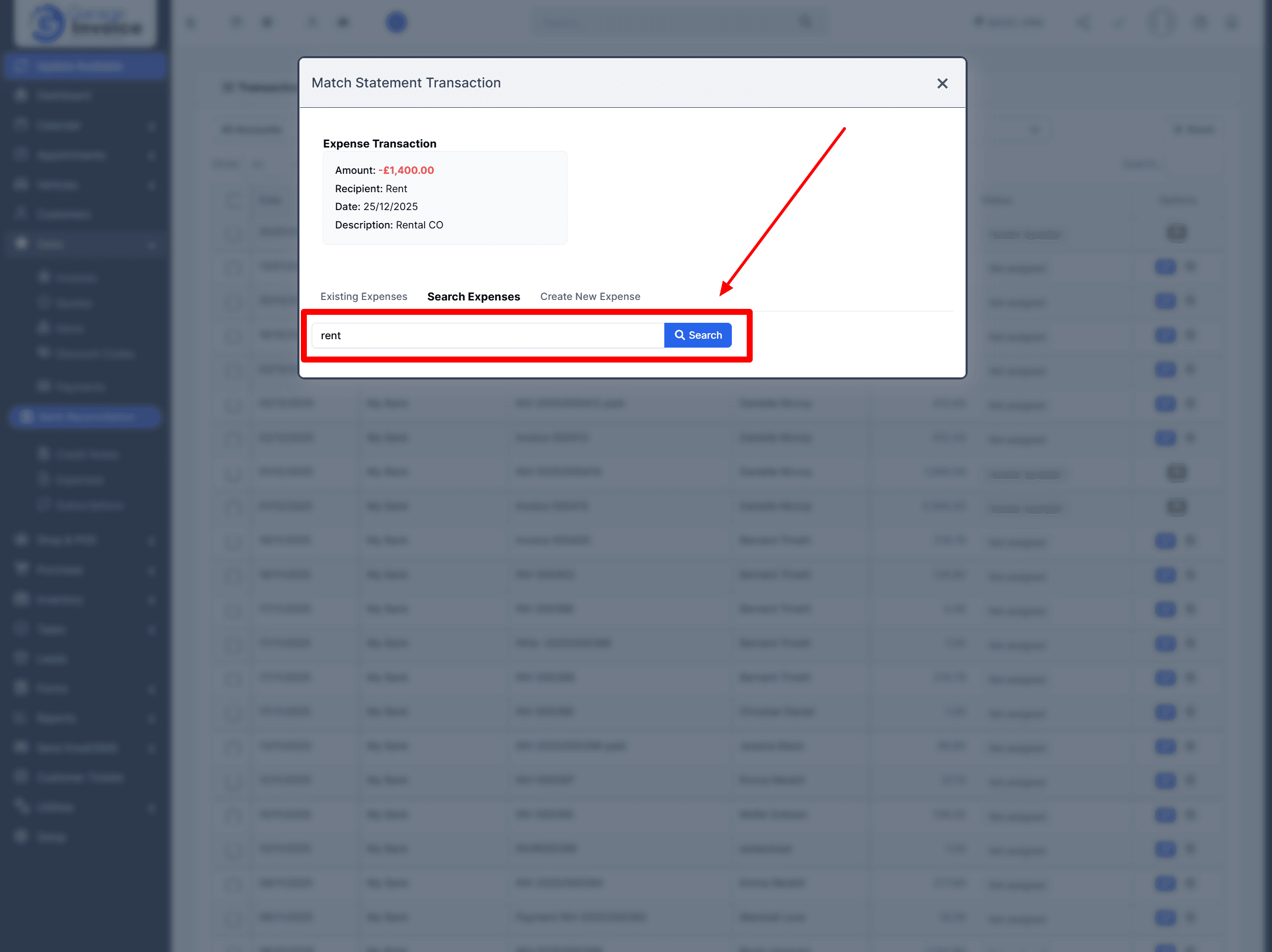
Search using:
name
vendor
note
- amount
- This will display a full list of matching expenses.
Click the expense you want to match, then click Confirm.
If the expense does not exist yet
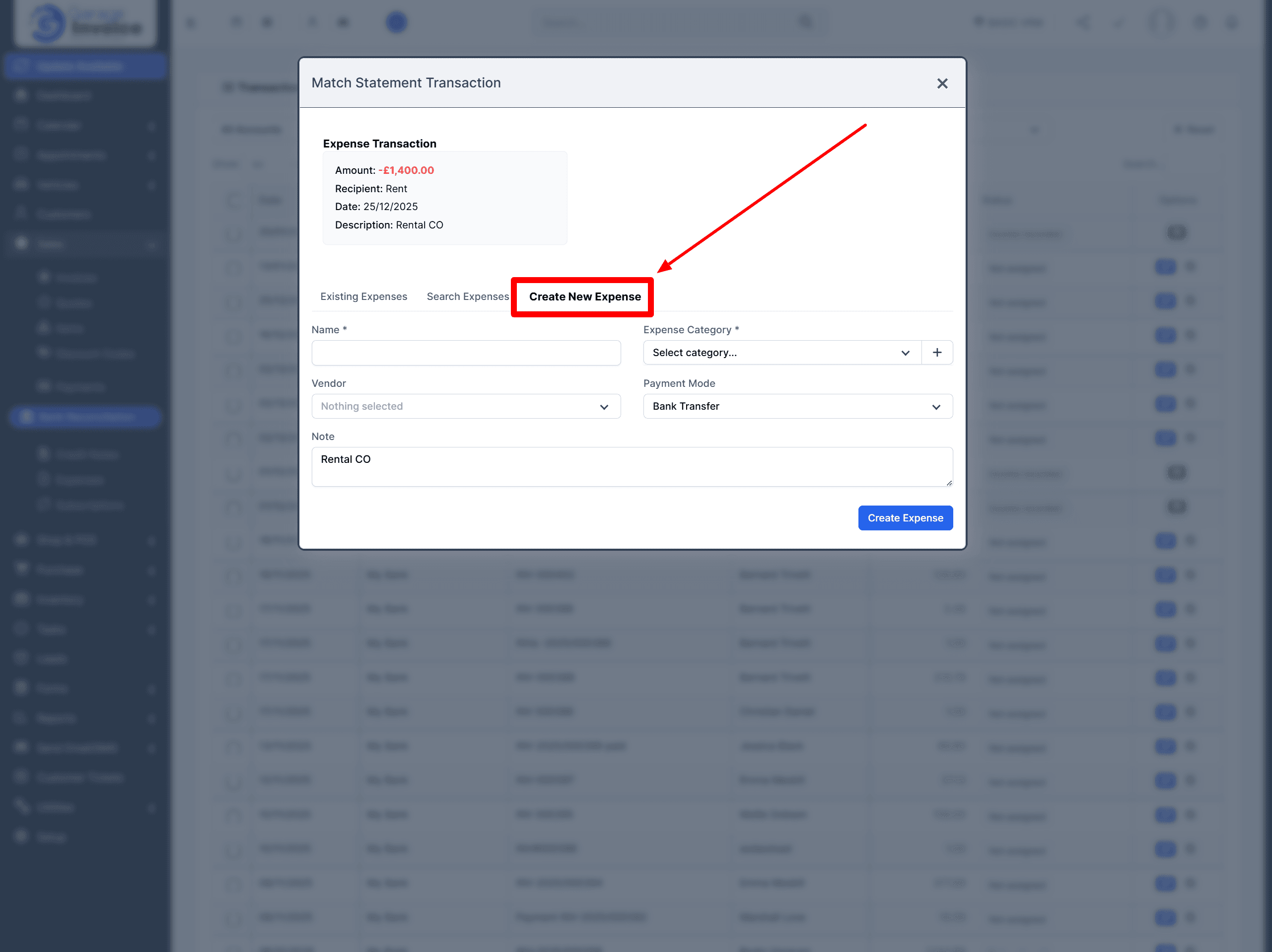
If you can’t find the expense in the system, you can create a new one:
Click Create New Expense
Fill in the expense details
Click Create Expense
The system will automatically create the expense and match it to this transaction.