
Bank Accounts
Add a Bank Account
Step 1: Open Bank Accounts
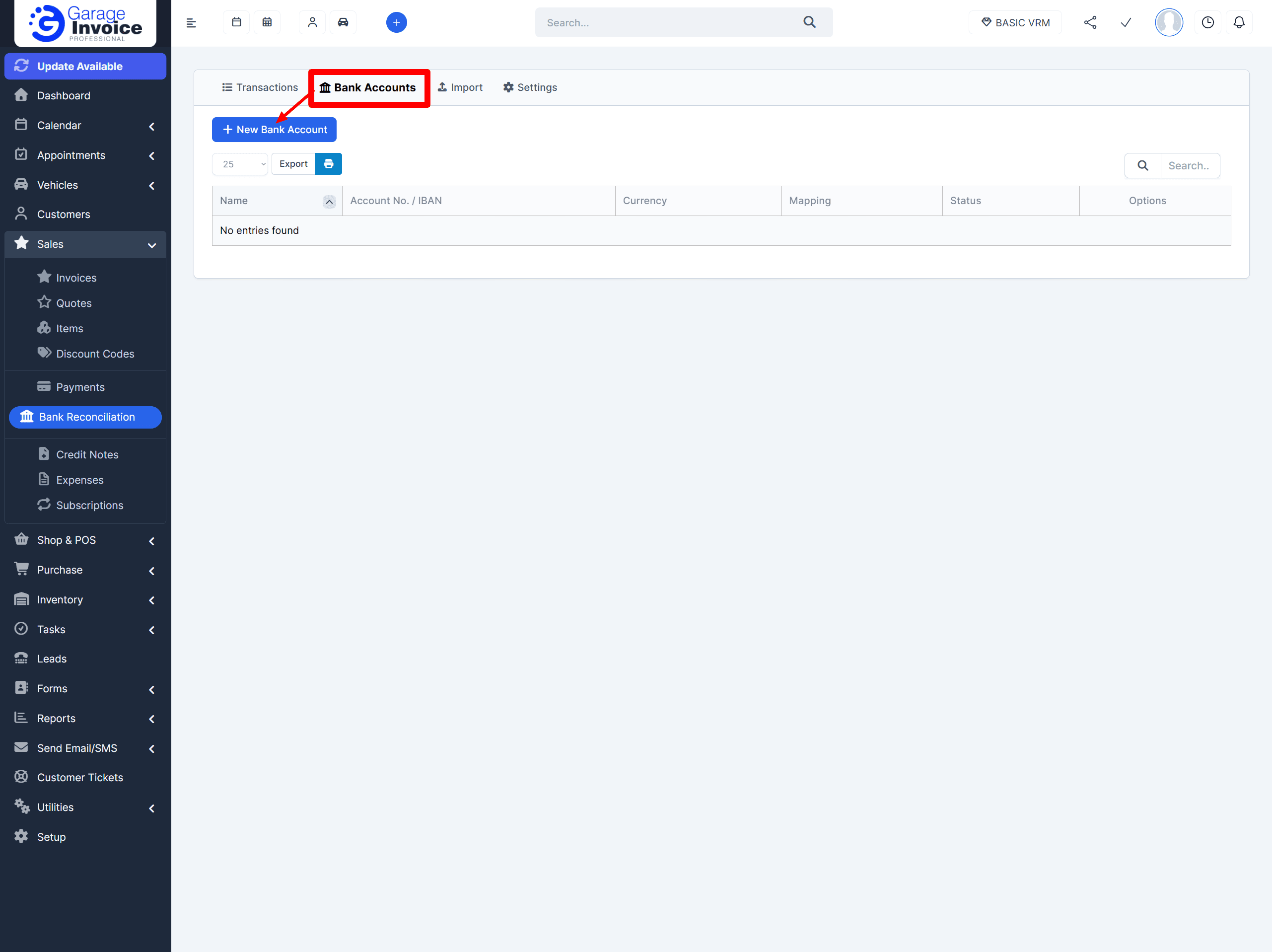
In the left menu, go to Sales → Bank Reconciliation → Bank Accounts.
Click New Bank Account.

Step 2: Fill in the bank account details
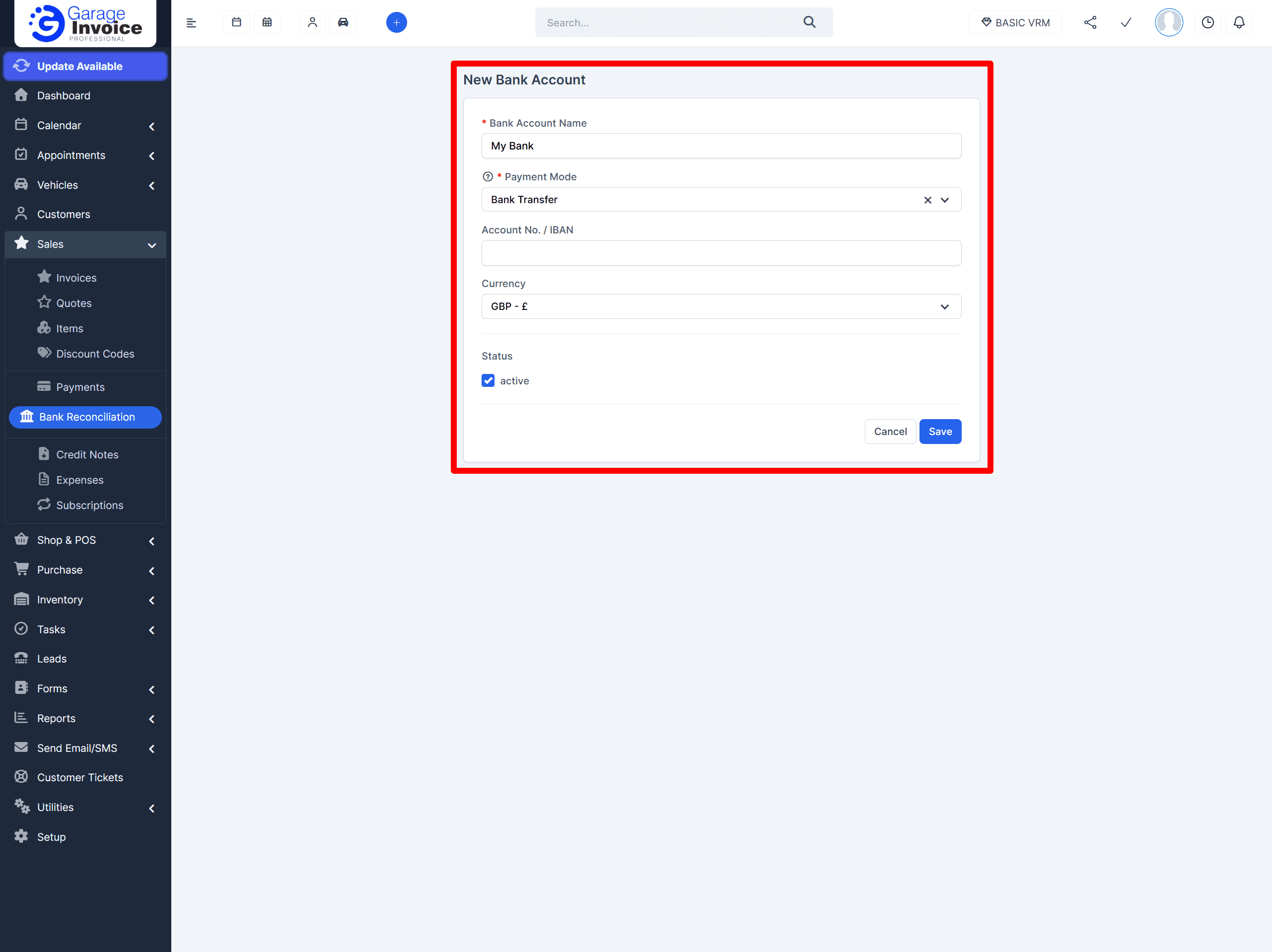
Bank Name: Enter a name you will recognise (for example, Barclays Business, Revolut EUR, Cash Account).
Payment Mode: Select the payment mode that should be used for this bank account.
This payment mode will be automatically assigned to any payments created when you reconcile transactions for this bank.
Optional fields (if available):
Bank Account Number: Enter your account number (useful if you manage multiple accounts).
Currency: Select the currency for this bank account.
Status: Make sure the status is set to Active.
Step 3: Save
Click Save to create the bank account.
Once saved, you will automatically be taken to the next step, where you can map the columns of your CSV bank statement.